Stockity Withdraw and Deposit: Methods, Times & Limits

This article breaks down the practical steps to deposit and withdraw on Stockity, what payment types typically clear faster, common limits and processing windows, and the verification checkpoints that often block payouts. You’ll get a clear checklist for preparing documents, choosing the right funding method, and troubleshooting stuck or rejected transfers so you can access and move your funds with fewer delays.

How to Withdraw Funds from Your Stockity Account
Stockity Withdrawal methods
The method you choose to take the money out will depend on how you deposited it.Only the e-wallet account from which you made the deposit may be used to withdraw funds. To take money out, create a withdrawal request on the withdrawal page. Withdrawal requests are processed within two business days.
There are no fees associated with our platform. However, the payment method you select may impose such commission fees.
A Step-by-Step Guide to Withdrawing Funds from Stockity
How to Withdraw Funds on Stockity Using Internet Banking
Step 1: Access Your Account’s Dashboard
After logging in, navigate to your account dashboard. After logging in, this is usually your main landing page, which gives a summary of all the financial transactions associated with your account.
Step 2: Verify Your Identity
Security is Stockity’s primary priority. To process a withdrawal, you may need to produce identification. This could include supplying more information, answering security questions, or completing a multi-factor authentication process.
Step 3: Go to the section on withdrawals
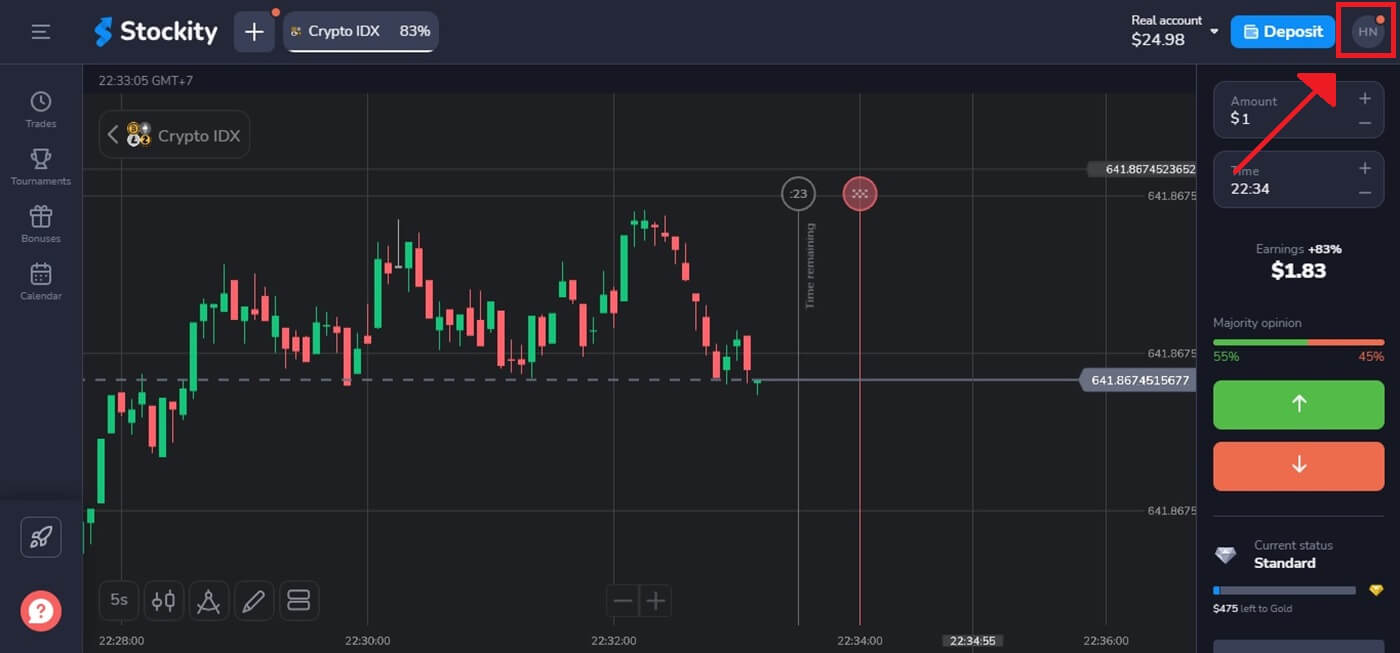
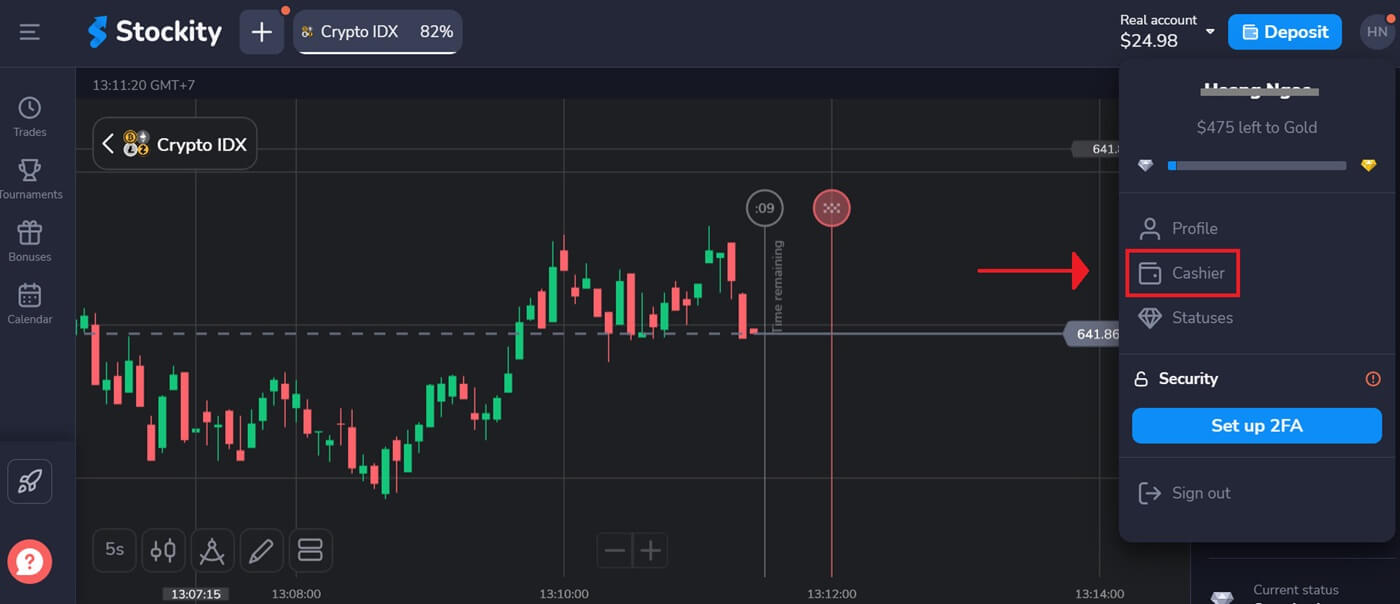
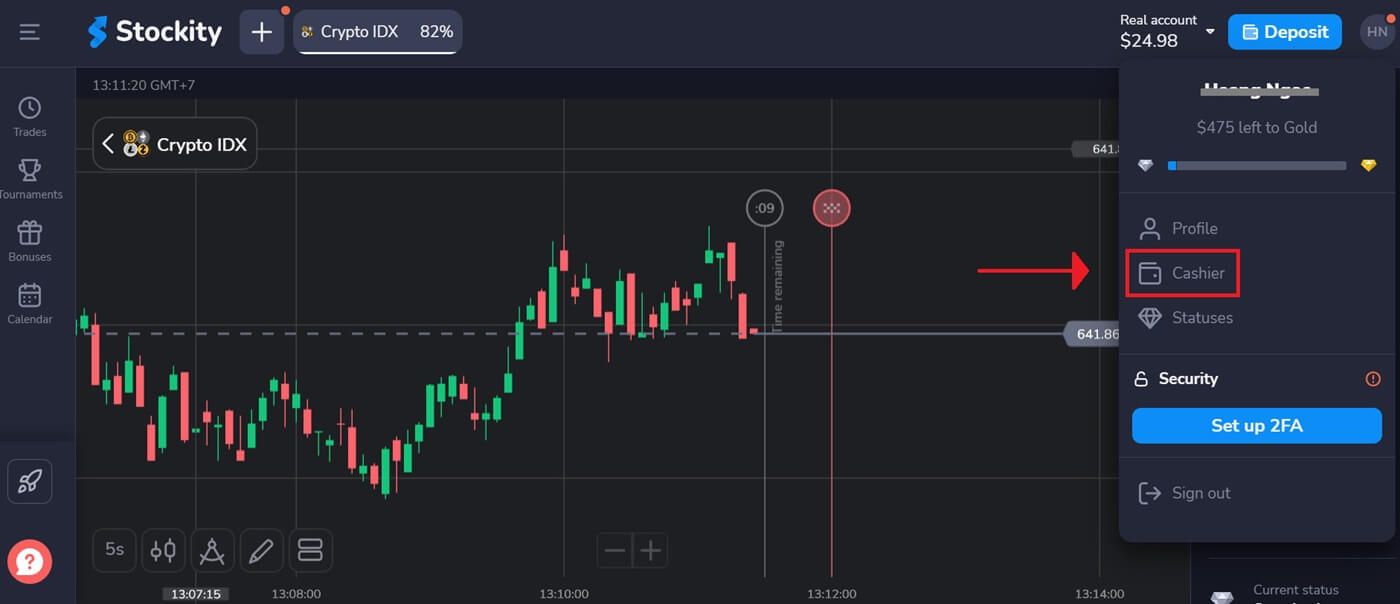
Click on your profile picture in the top right corner of the screen and choose the “Cashier” tab in the menu. Then click the “Withdraw funds” tab.
Step 4: Choose the Withdrawal Amount
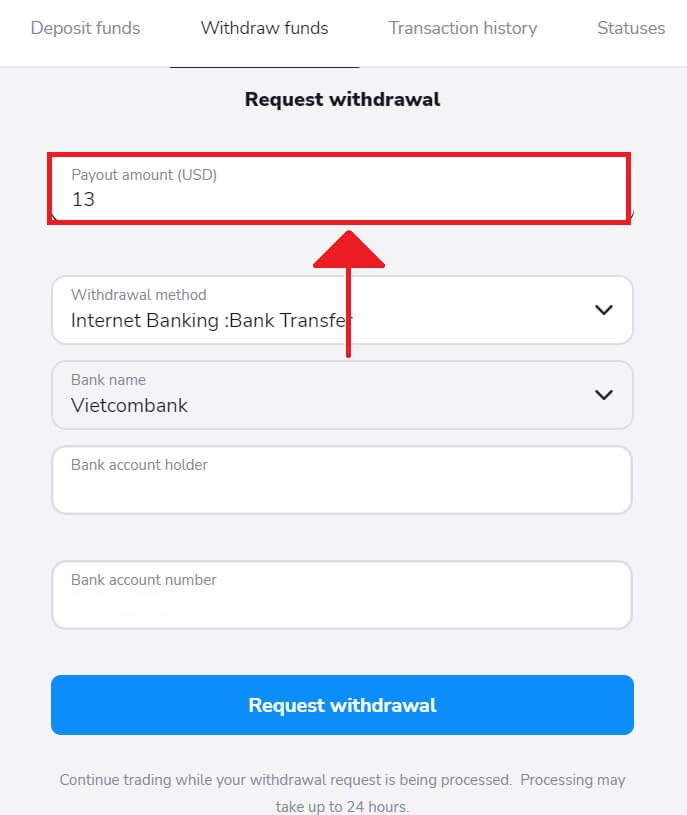
Enter the desired amount to take money out of your Stockity account. Make sure the amount stays within your available balance and takes into account any potential fees associated with the withdrawal type.
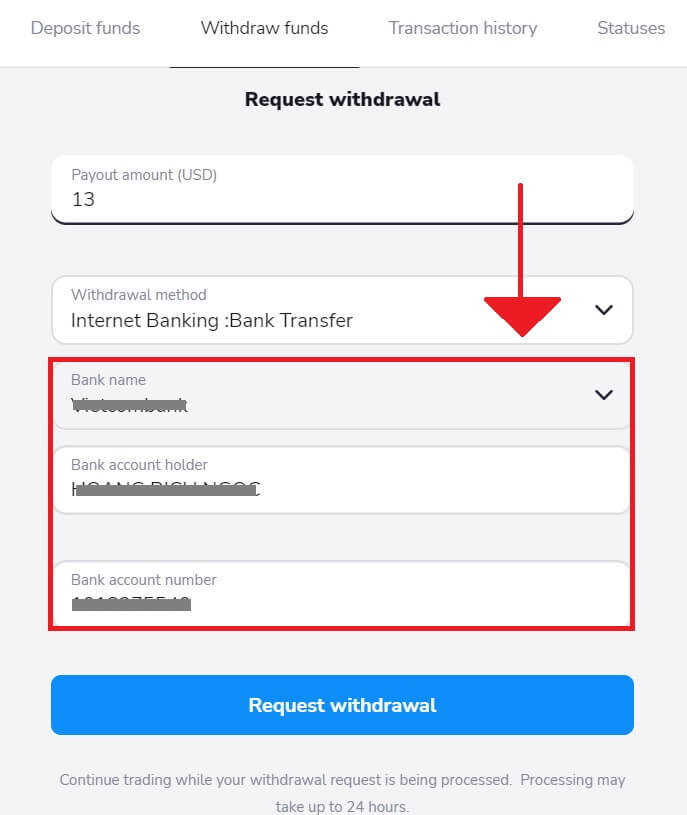
Step 5: Choose the Withdrawal Method
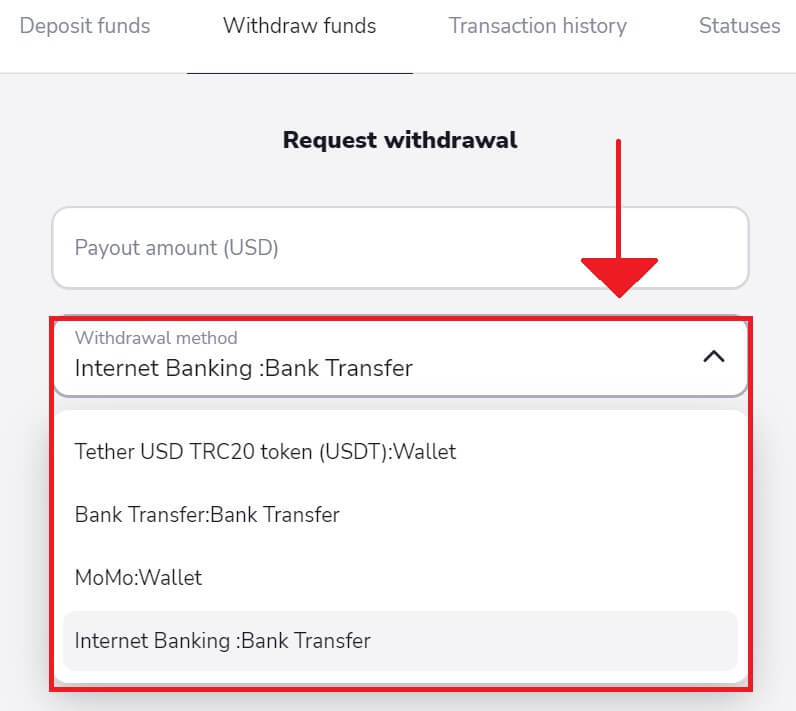
In addition to the cryptocurrency withdrawal method, you have the option of using another one. If something goes wrong, you can easily switch your withdrawal method. Here, we select to withdraw money using Internet Banking.
Step 6: Choose your Bank Name, and enter the Bank account holder and Bank account number to receive funds
Copy your information account on the Internet Banking app and input the requested withdrawal on Stockity to obtain money. Then, click "Request withdrawal".
Step 7: Check the Status of Withdrawal
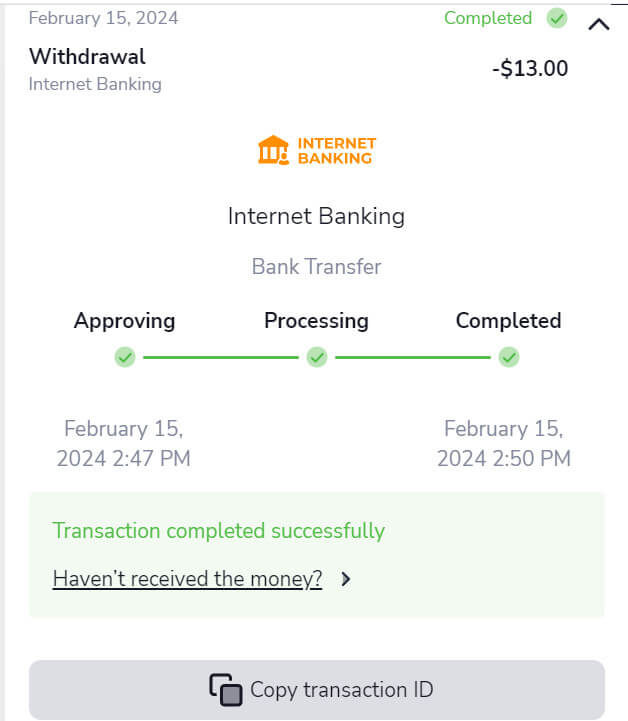
After submitting your withdrawal request, monitor your account for updates on its status. When your withdrawal is processed, approved, or completed, Stockity will notify you or provide an update.
How to Withdraw Funds on Stockity Using Crypto (BTC, ETH, BNB, ADA, LTC, USDT)
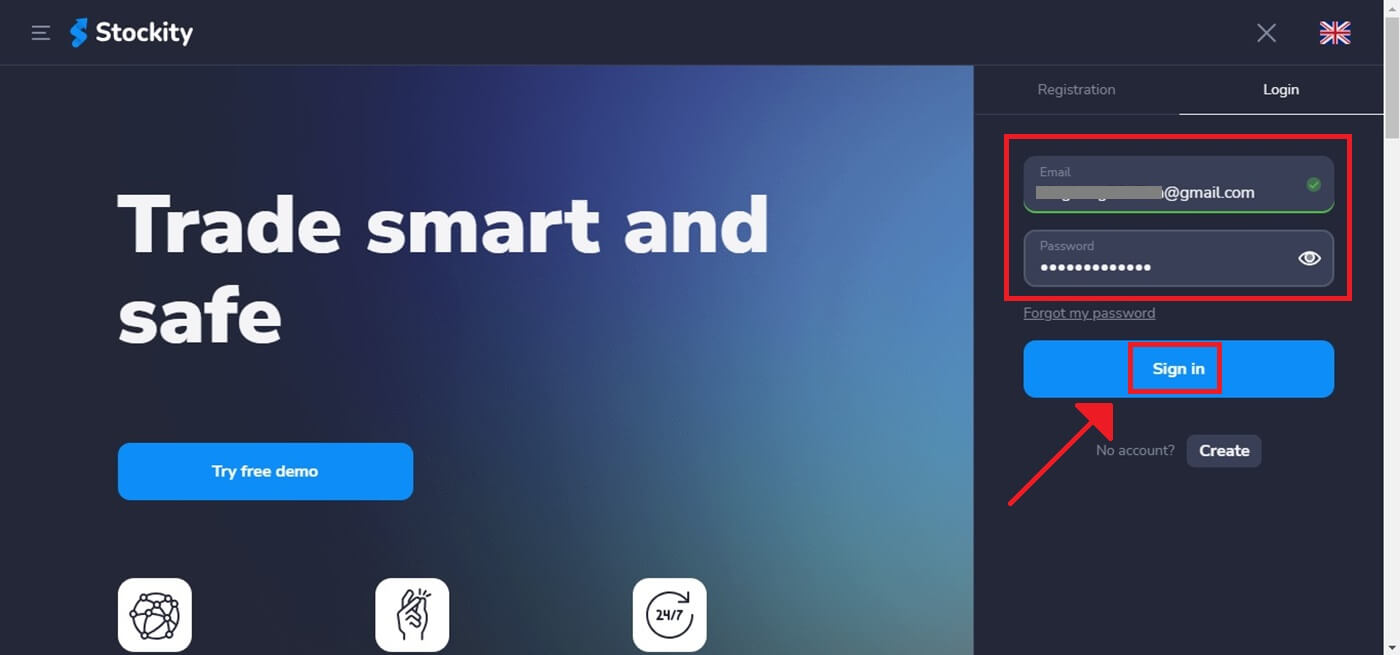
Step 1: Sign in to your Stockity account.To access your Stockity account and start the withdrawal process, enter your password and registered email address. Make sure you are using the Stockity website to protect your account.
Step 2: Access Your Account’s Dashboard
After logging in, go to your account dashboard. After logging in, this is usually your main landing page, and it displays an overview of all the financial activities connected to your account.
Step 3: Verify Your Identity
Security is a top priority for Stockity. You may be required to present identification to process a withdrawal. This may mean providing additional information, answering security questions, or completing a multi-factor authentication process.
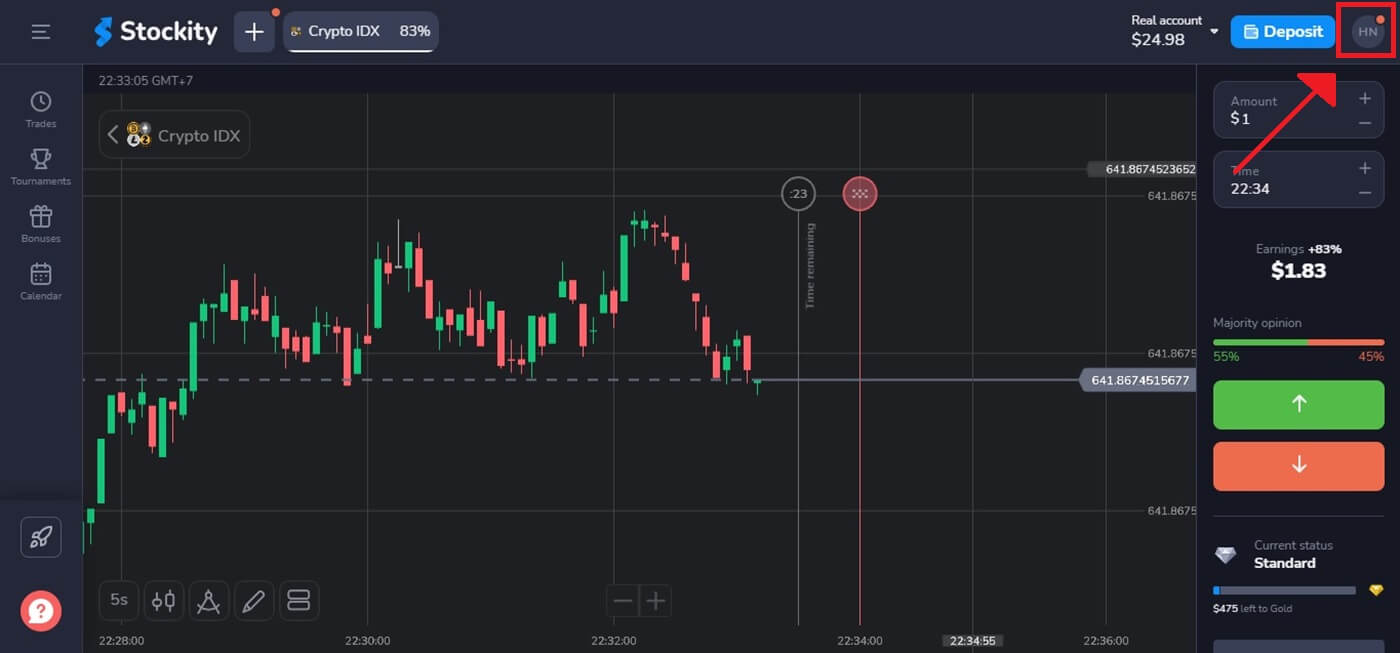
Step 4: Go to the section on withdrawals
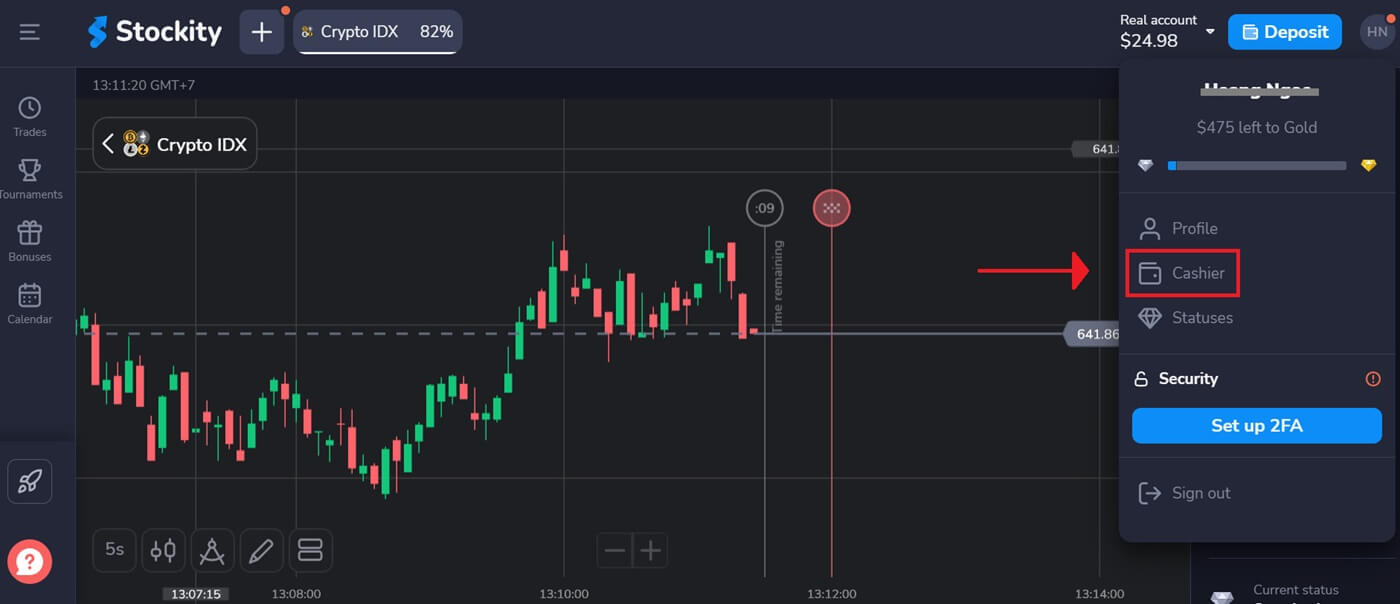
Click on your profile picture in the top right corner of the screen and choose the “Cashier” tab in the menu. Then click the “Withdraw funds” tab.
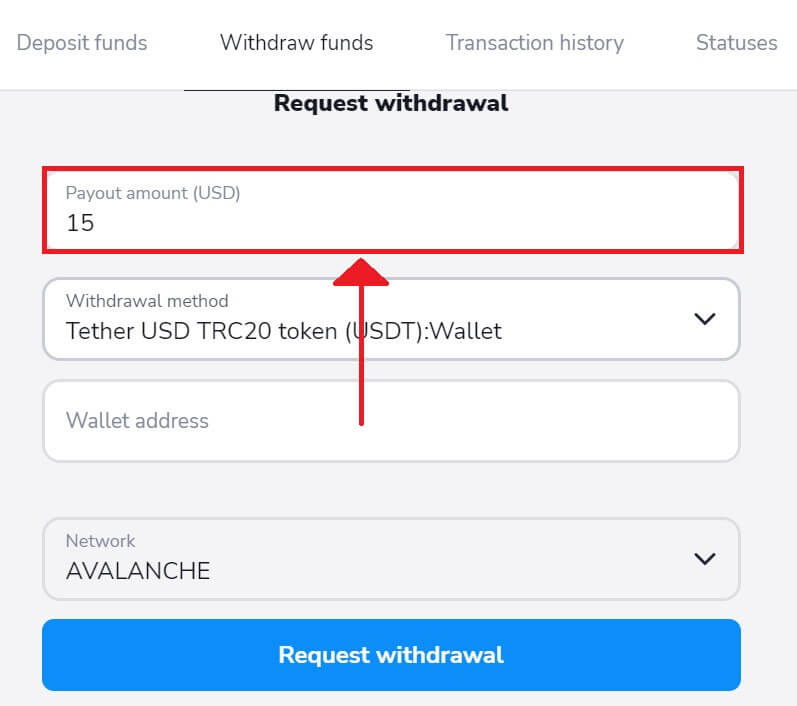
Step 5: Choose the Withdrawal Amount
Enter the desired amount to take money out of your Stockity account. Make sure the amount stays within your available balance and takes into account any potential fees associated with the withdrawal type.
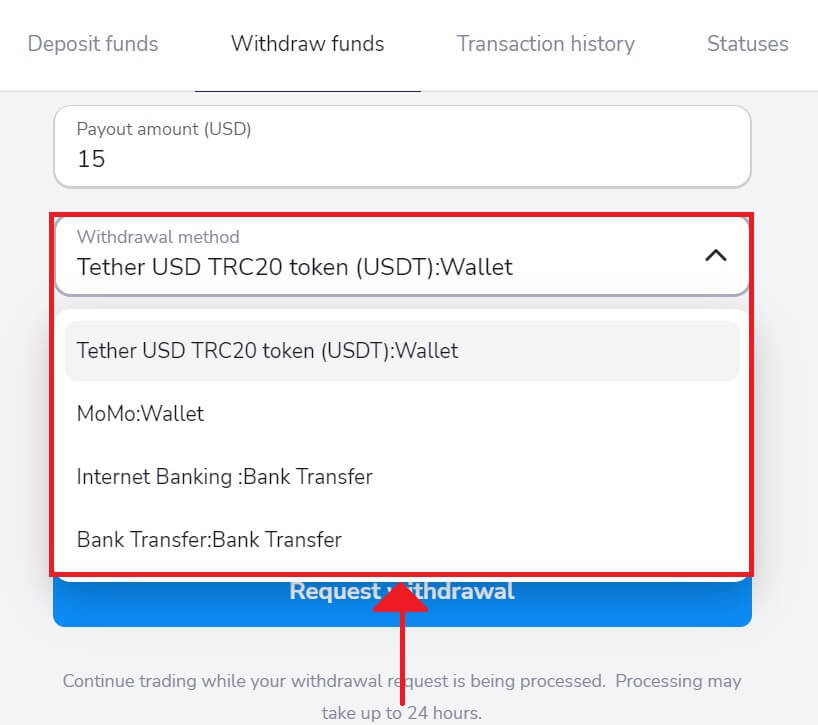
Step 6: Choose the Withdrawal Method
Typically, Stockity offers several withdrawal choices. Choose the option that works best for you, then click to proceed.
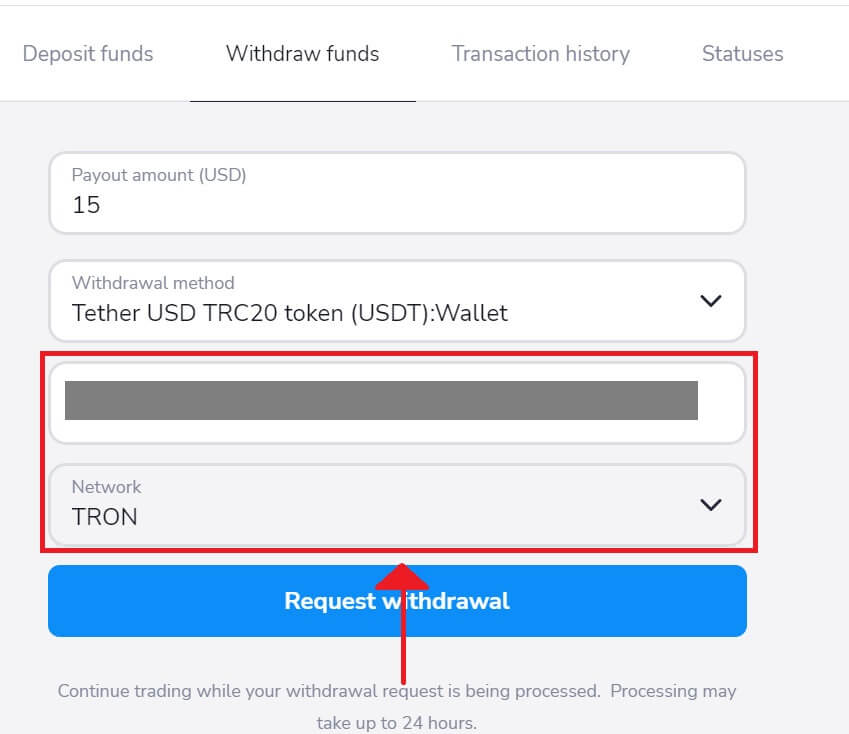
Step 7: Enter the wallet address and choose Network to receive funds
Copy your deposit address from the external app and input that address to retrieve the money.
Step 7: Monitor Withdrawal Status
After submitting your withdrawal request, keep an eye on your account to learn more about its status. Stockity will notify you or provide updates regarding the processing, approval, or completion of your withdrawal.
Attention: It usually takes payment providers up to 1 hour to credit funds to your e-wallet. In rare cases, this period may be extended to 7 business days due to national holidays, your payment provider’s policy, etc.
How to Withdraw Funds on Stockity Using E-Wallets (Advcash, Perfect Money)
Step 1: Access Your Account’s DashboardAfter logging in, navigate to your account dashboard. After logging in, this is usually your main landing page, which gives a summary of all the financial transactions associated with your account.
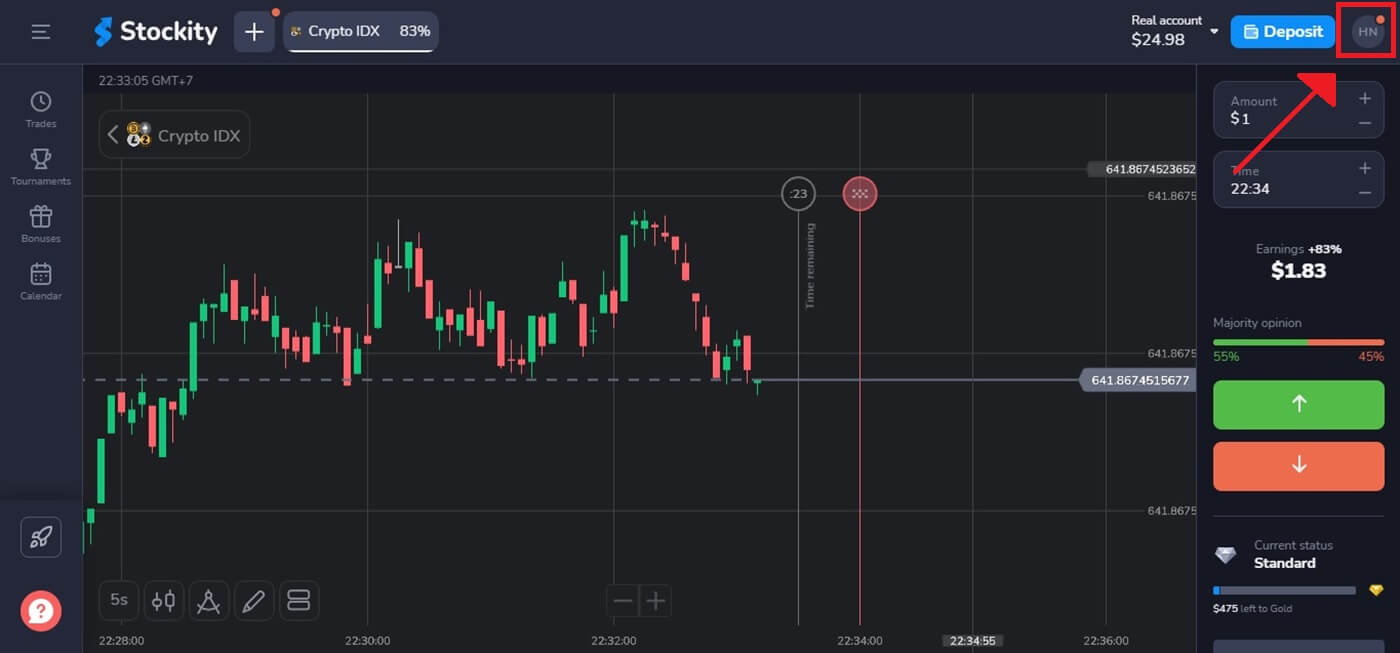
Step 2: Verify Your Identity
Security is Stockity’s primary priority. To process a withdrawal, you may need to produce identification. This could include supplying more information, answering security questions, or completing a multi-factor authentication process.
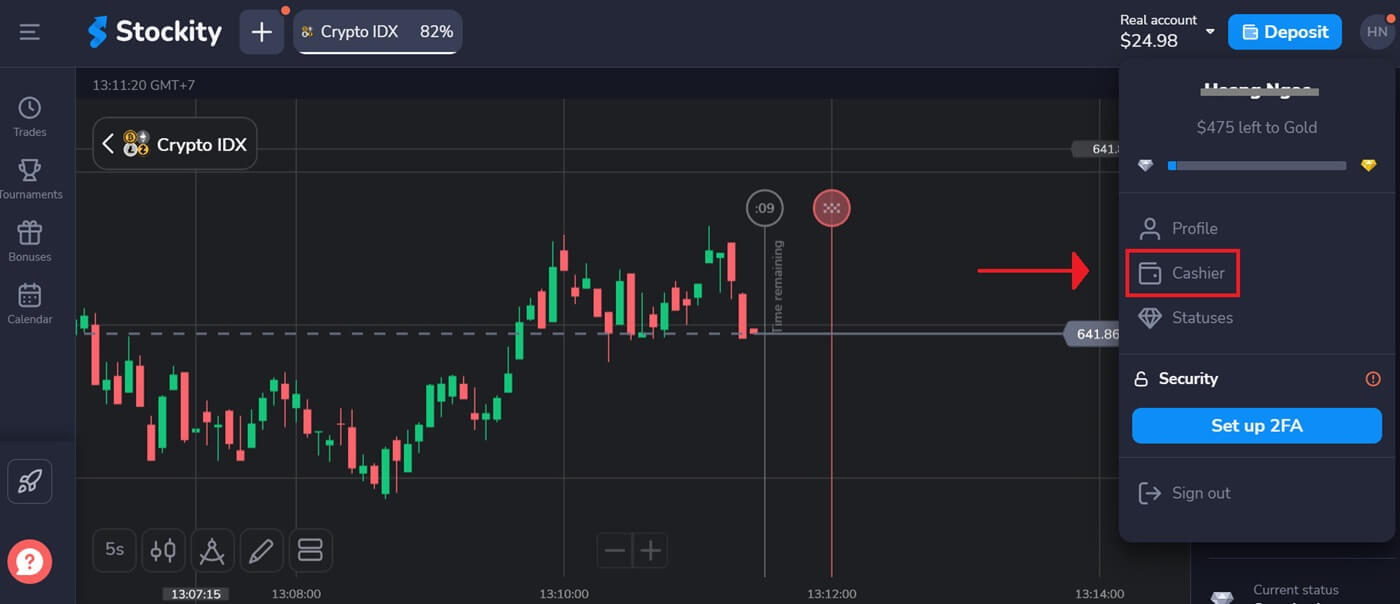
Step 3: Go to the section on withdrawals
Click on your profile picture in the top right corner of the screen and choose the “Cashier” tab in the menu. Then click the “Withdraw funds” tab.
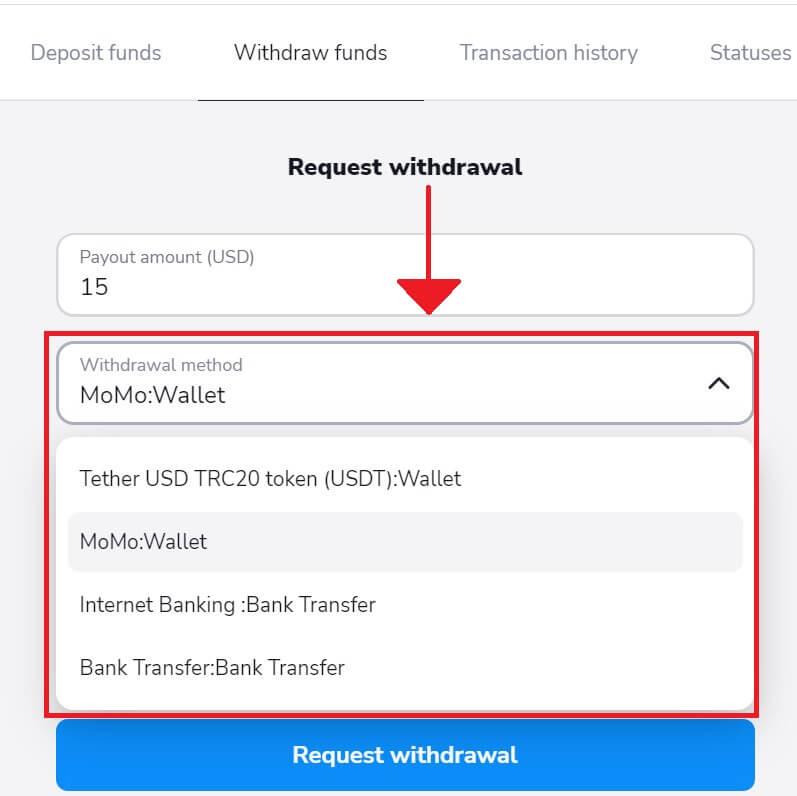
Step 4: Choose the Withdrawal Method
In addition to the cryptocurrency withdrawal method, you have the option of using another one. If something goes wrong, you can easily switch your withdrawal method. Here, we select to withdraw money using MoMo.
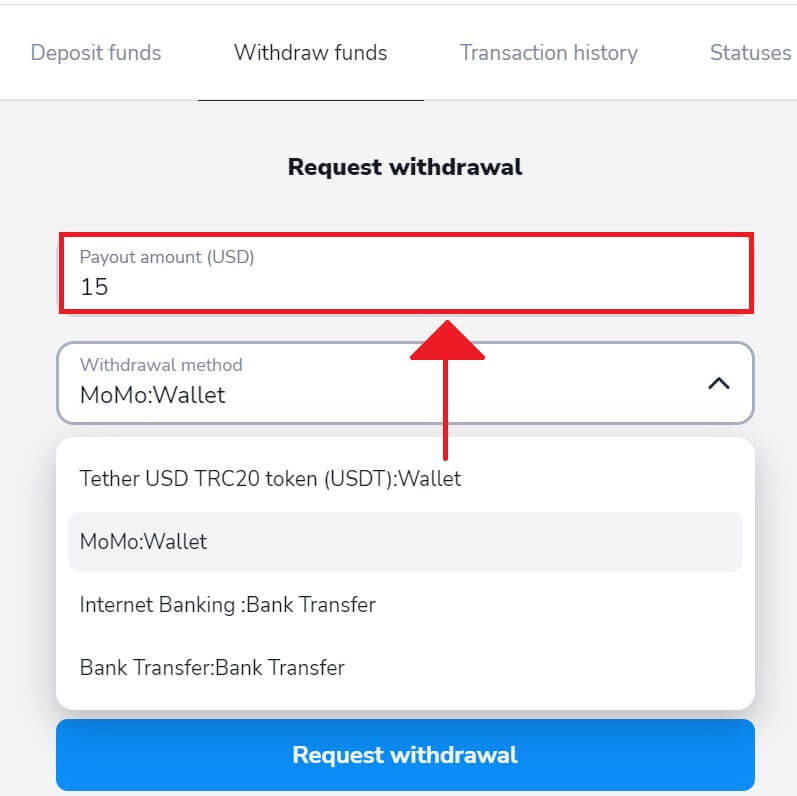
Step 5: Choose the Withdrawal Amount
Enter the desired amount to take money out of your Stockity account. Make sure the amount stays within your available balance and takes into account any potential fees associated with the withdrawal type.
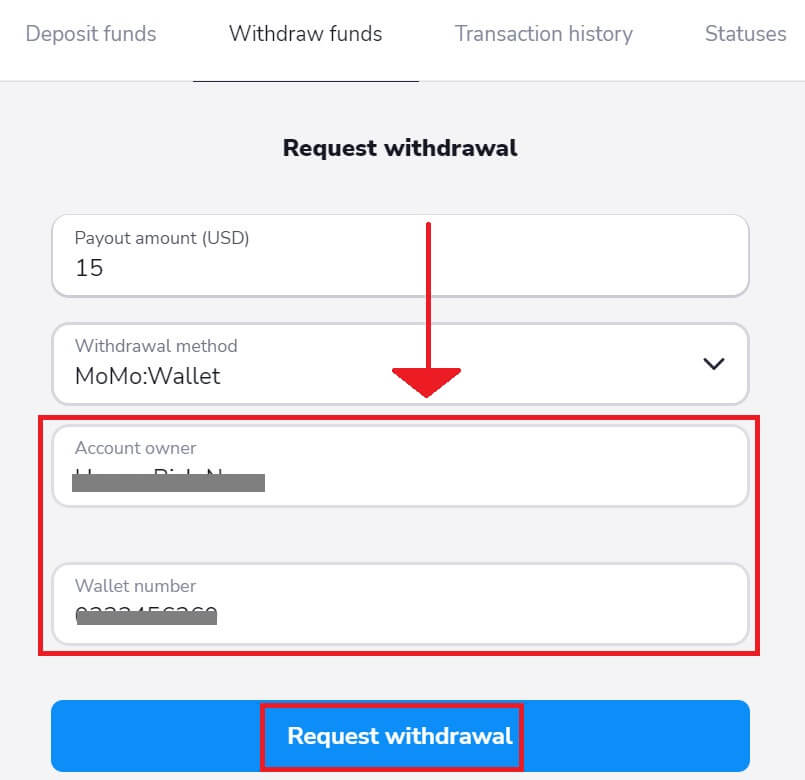
Step 6: Enter the Account owner and Wallet number to receive funds
Copy your information account on the Momo app and input the requested withdrawal on Stockity to obtain money. Then, click "Request withdrawal".
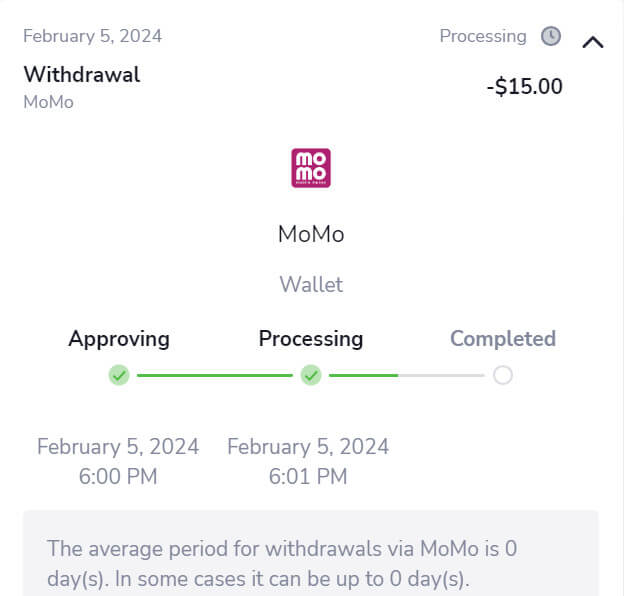
Step 7: Check the Status of Withdrawal
After submitting your withdrawal request, monitor your account for updates on its status. When your withdrawal is processed, approved, or completed, Stockity will notify you or provide an update.
How much time does it take to process a withdrawal on Stocity?
The procedure of initiating a withdrawal of funds involves three steps:
-
After we authorize your withdrawal request, the payment service provider receives it.
-
The withdrawal is subsequently processed by the payment service provider.
-
Finally, you receive the money.
Note: Payment service providers may take anywhere from a few minutes up to three business days to deposit the funds into your account. Occasionally, due to circumstances such as public holidays, the payment provider’s policies, and so on, it can take up to a week.
Approval time
A withdrawal request is tagged as "Approving" or "Pending" (in some mobile app versions) after it is submitted. We make every effort to grant withdrawal requests as soon as possible. The "Transaction History" section will tell you how long this process will take, based on your status.
1. Select the "Cashier" tab from the menu by clicking on your profile image in the upper right corner of the screen. Next, select the tab labeled "Transaction history".Users of mobile apps should select the "Balance" area by opening the left-side menu.
2. Click on your withdrawal. The approval period for your transaction will be indicated.
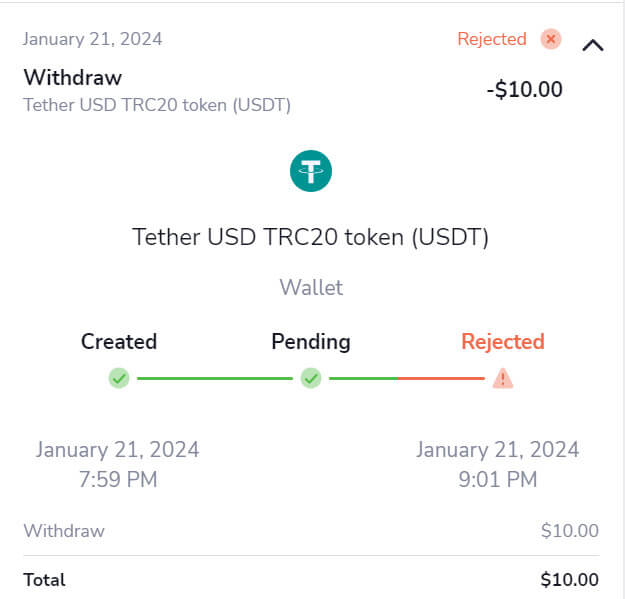
If your withdrawal request is taking longer than usual to get approved, please reach out to us by clicking on the "Waiting for more than N days?" link (or the "Contact support" button for those using the mobile app). We will strive to resolve the issue and expedite the process.
Processing duration
Once your transaction has been approved by us, it’s passed onto the payment provider for further processing and is marked as "Processing" or "Approved" in some versions of the mobile app.
Every payment provider has its own unique processing duration. To get details about the average processing time (which applies in most cases) and the maximum processing time (applicable in a few cases), click on your deposit in the "Transaction History" section.
What is the minimum withdrawal limit on Stockity?
Before initiating any cash withdrawals from your brokerage account, you must consider the minimum withdrawal requirement. Certain brokers impose restrictions that prevent traders from withdrawing less than this minimal amount.
The minimum withdrawal limit is set at $10/€10 or an equivalent amount in your account currency.
What is the maximum withdrawal limit on Stockity?
As for the maximum withdrawal amounts:
-
Per day: You can withdraw up to $3,000/€3,000, or an equivalent amount in your account currency.
-
Per week: The maximum withdrawal limit is $10,000/€10,000, or an equivalent amount in your account currency.
-
Per month: You can withdraw a maximum of $40,000/€40,000, or an equivalent amount in your account currency.
Please note that these limits may slightly differ based on specific payment providers in certain cases.
Frequently Asked Questions
What document should I provide for withdrawal?
You must successfully finish the account verification process before you may withdraw money.
After completing the necessary document upload, you will have to wait for our experts to review the materials.
What are the options for withdrawing funds?
You can withdraw with the same method you used for topping up your account. The list of the available options may be found in the "Withdraw funds" section on the platform.
Is it possible to withdraw in my local currency?
Upon registration, you establish your account’s currency, which can either be the dollar ($), euro (€), or your native country’s currency. Your trading activities, deposits, and withdrawals will all be conducted in this chosen currency.
If the currency of your selected payment method is different from the currency of your Stockity account, your funds will be automatically converted. The exchange rate for this conversion is determined by the current market rate.
Are there any charges or fees for withdrawing funds?
Normally, we do not impose any fees or commissions for withdrawals.
However, in exceptional circumstances, payment service providers may apply a conversion commission if your Stockity account and payment method use different currencies. This commission is covered by Stockity and will be automatically refunded to your account.
Please be aware that if you deposit funds and subsequently choose to withdraw them without engaging in any trading activity, there is a possibility of incurring a 10% commission.
How to Deposit Funds on Stockity
How to Deposit Funds on Stockity Using Internet Banking
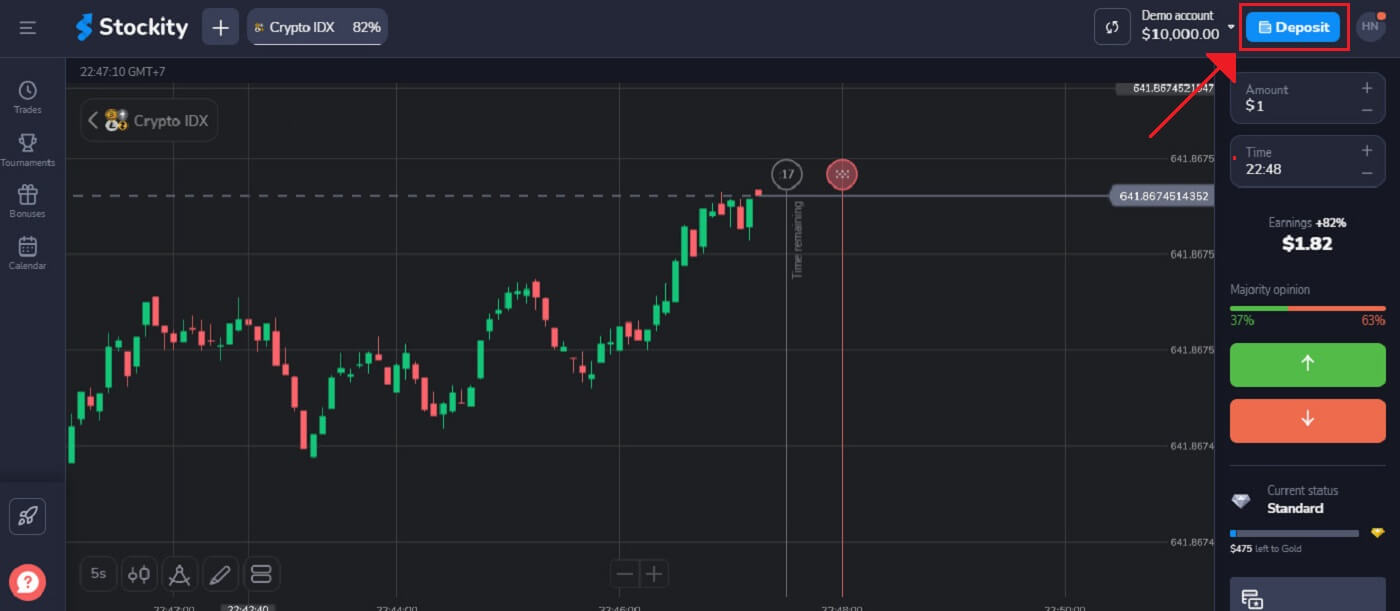
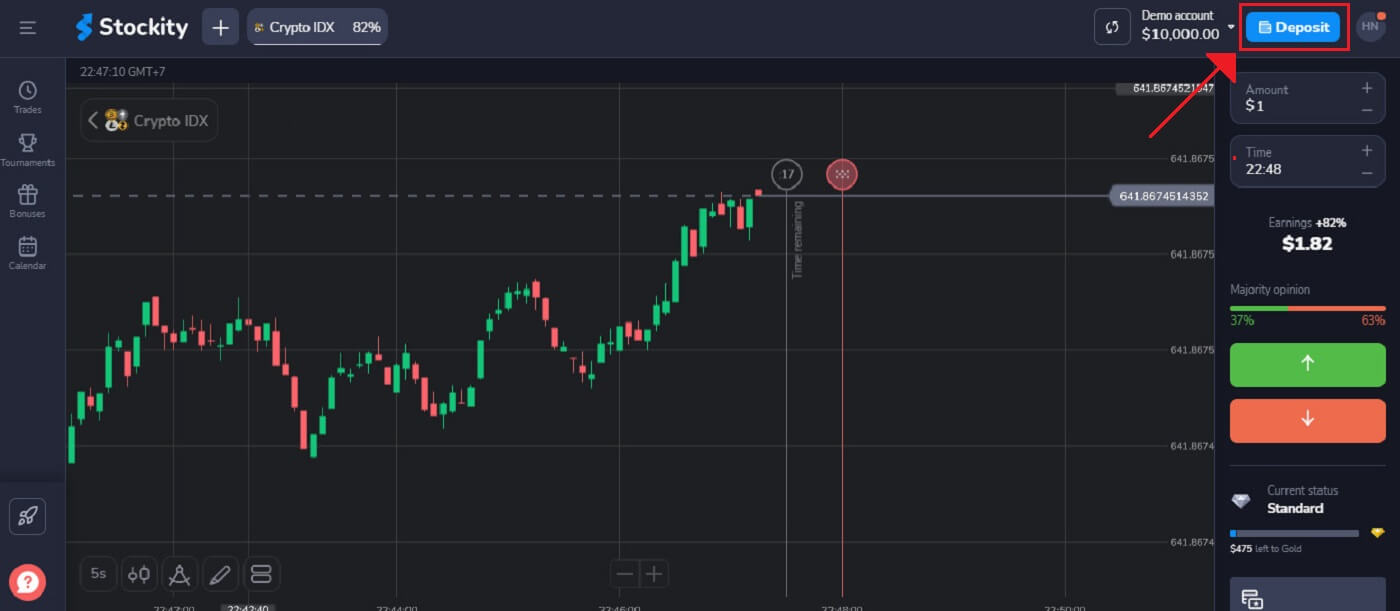
Bank transfers are represented in several payment methods, including local bank transfers, international, etc.1. Click the "Deposit" button in the top right corner of the tab to initiate the trade execution window.
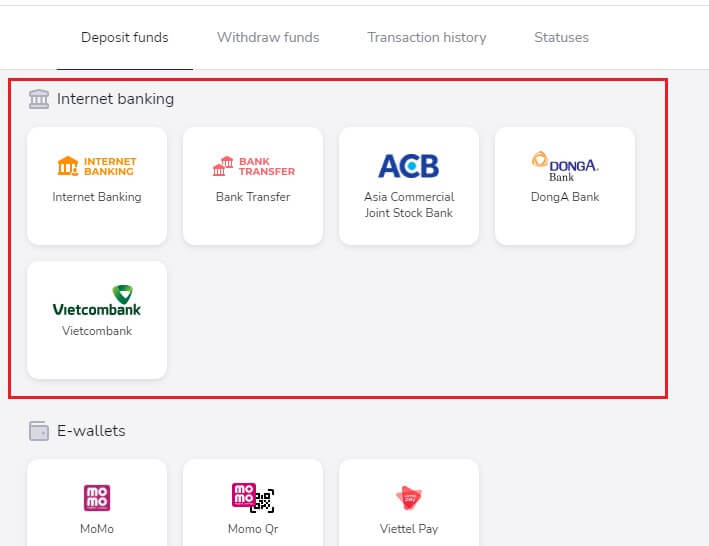
2. On the Finance - Deposit page, choose a wire transfer to proceed with your payment.
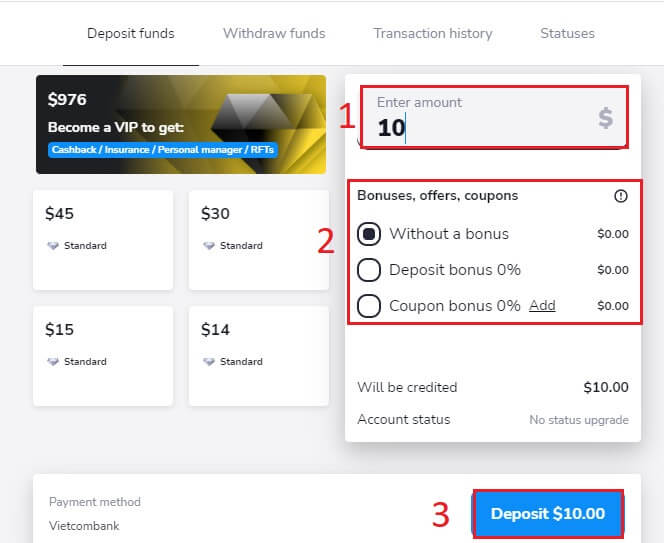
3. To make a deposit, you must:
- The amount you want to deposit into your Stockity account should be entered. Make sure the amount you have chosen meets Stockity’s minimum and maximum deposit requirements. A $10 minimum deposit is required.
- Choose your coupons, offers, and bonuses.
- Click "Deposit $10.00".
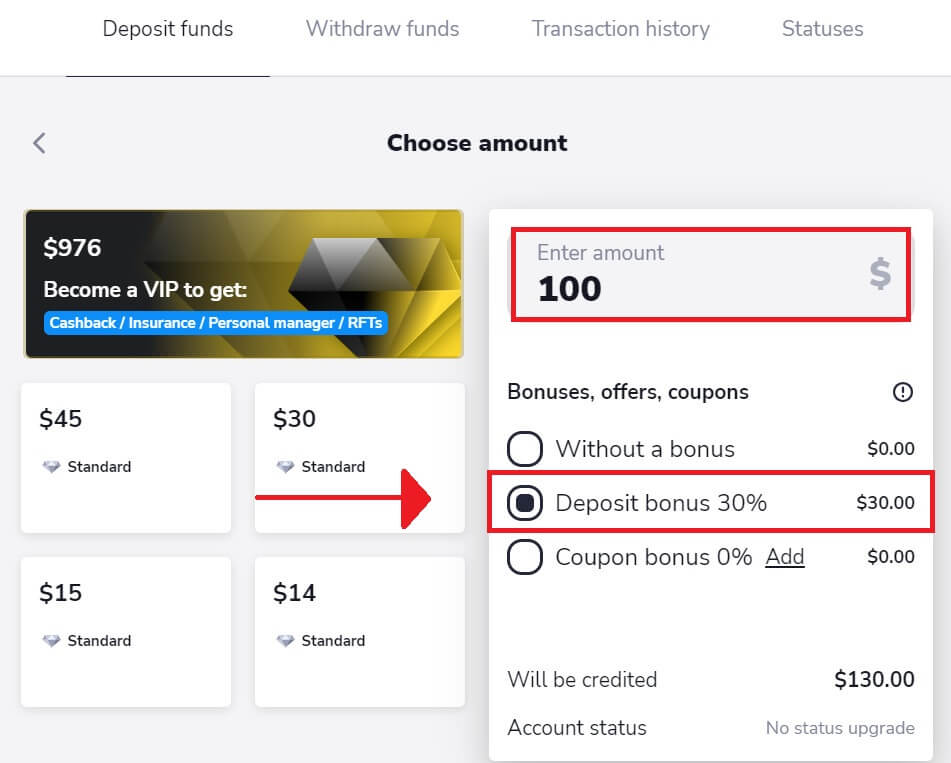
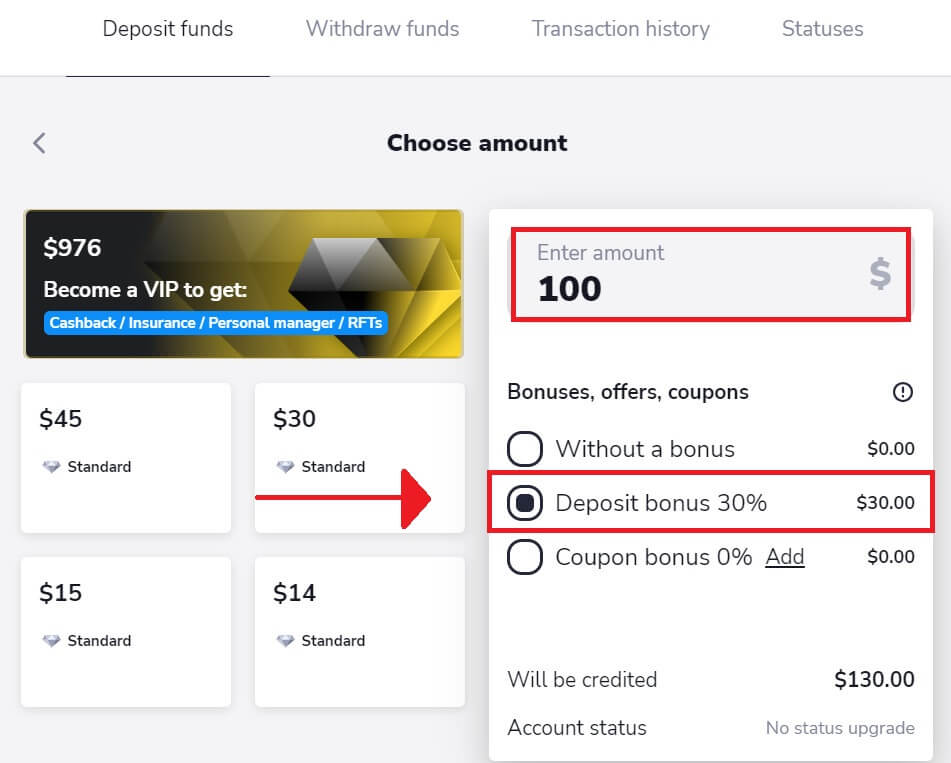
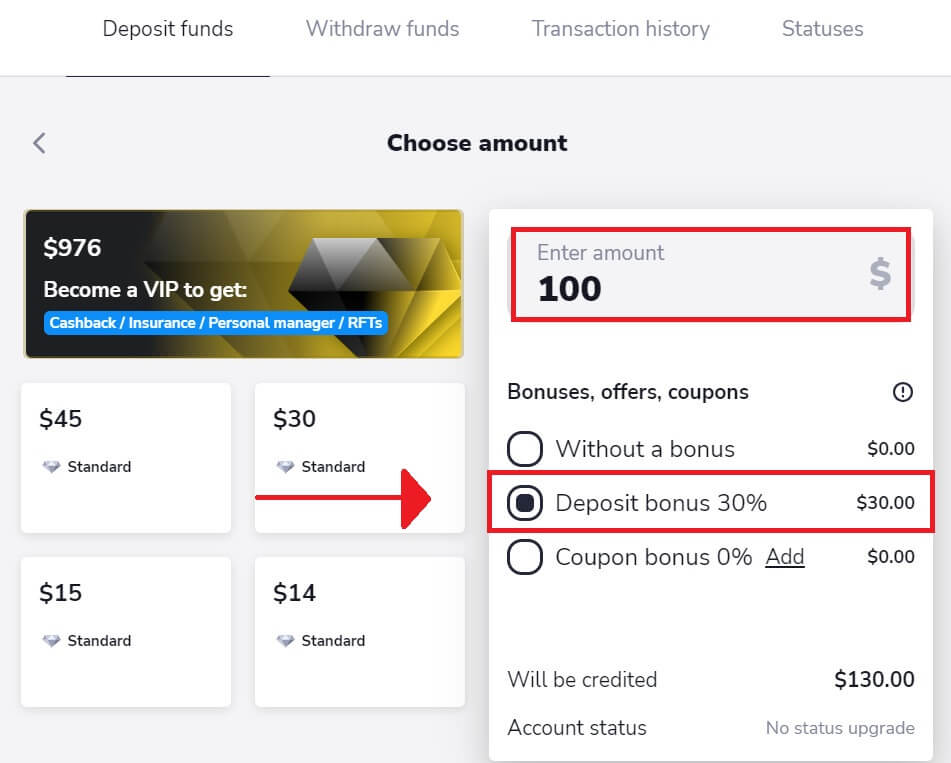
If the User deposits an amount of $100, the deposit bonus will be 30%.
4. Use your bank online banking username and password to log in.
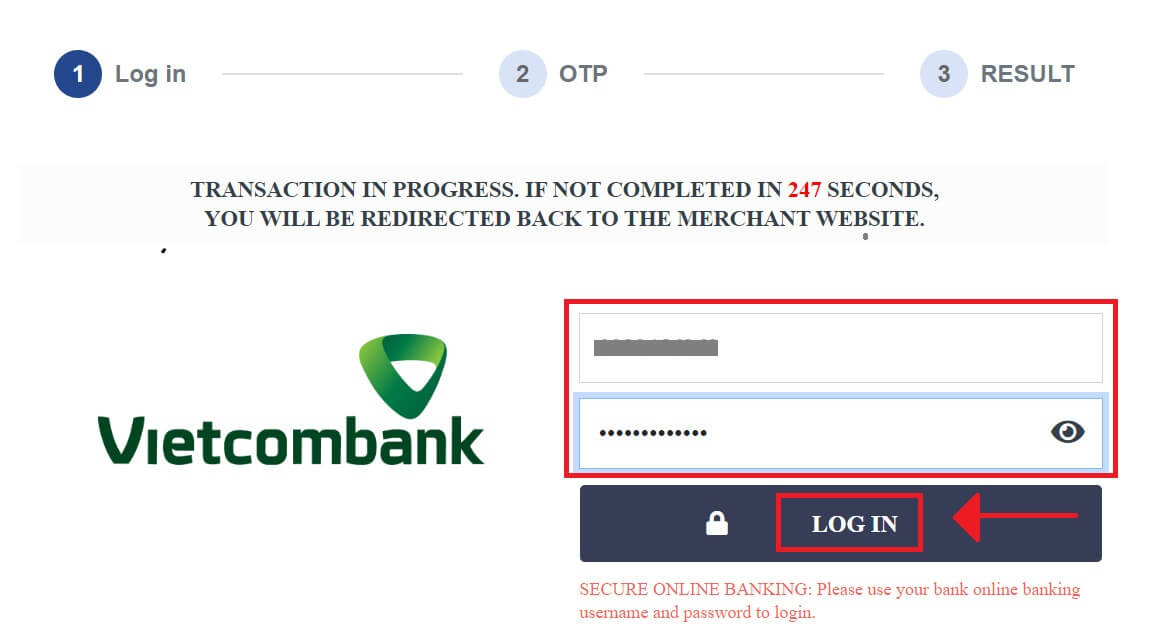
Helpful tips and reminders:
- Please ensure that you have activated online payment settings on your online bank account.
- Do not click any button more than once and do not refresh your browser.
- It may take several minutes for the transaction to reflect on your wallet.
- Take note of the bank reference number. In case of any issues, please contact our Customer Service representative.
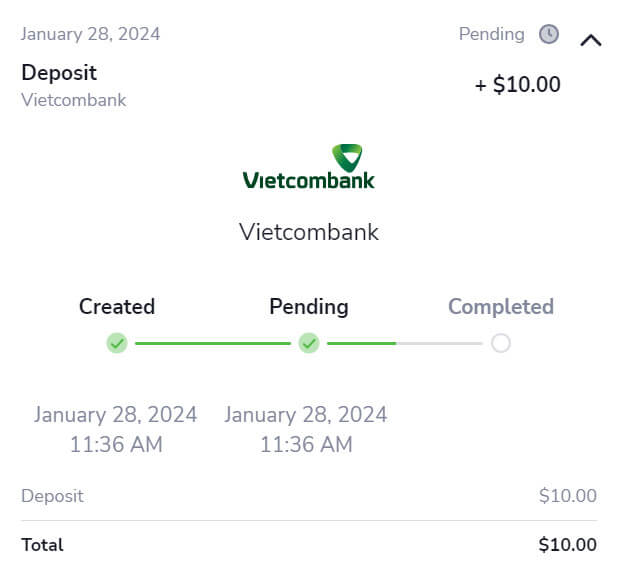
5. You will obtain an on-screen confirmation in the Stockity platform following the completed procedure. To finish all of the deposit stages, you must wait for the Bank’s response. Additionally, Stockity can send you an email or message to let you know about the deposit transaction.
How to Deposit Funds on Stockity Using Crypto (BTC, ETH, BNB, ADA, LTC, USDT)
If you want to use cryptocurrencies to fund your Stockity account, you will have to step into the world of decentralized finance. You will learn how to use cryptocurrencies to deposit money on the Stockity platform by following this guide.1. Upon logging in Stockity website, you will be directed to your dashboard. Click on the "Deposit" section.
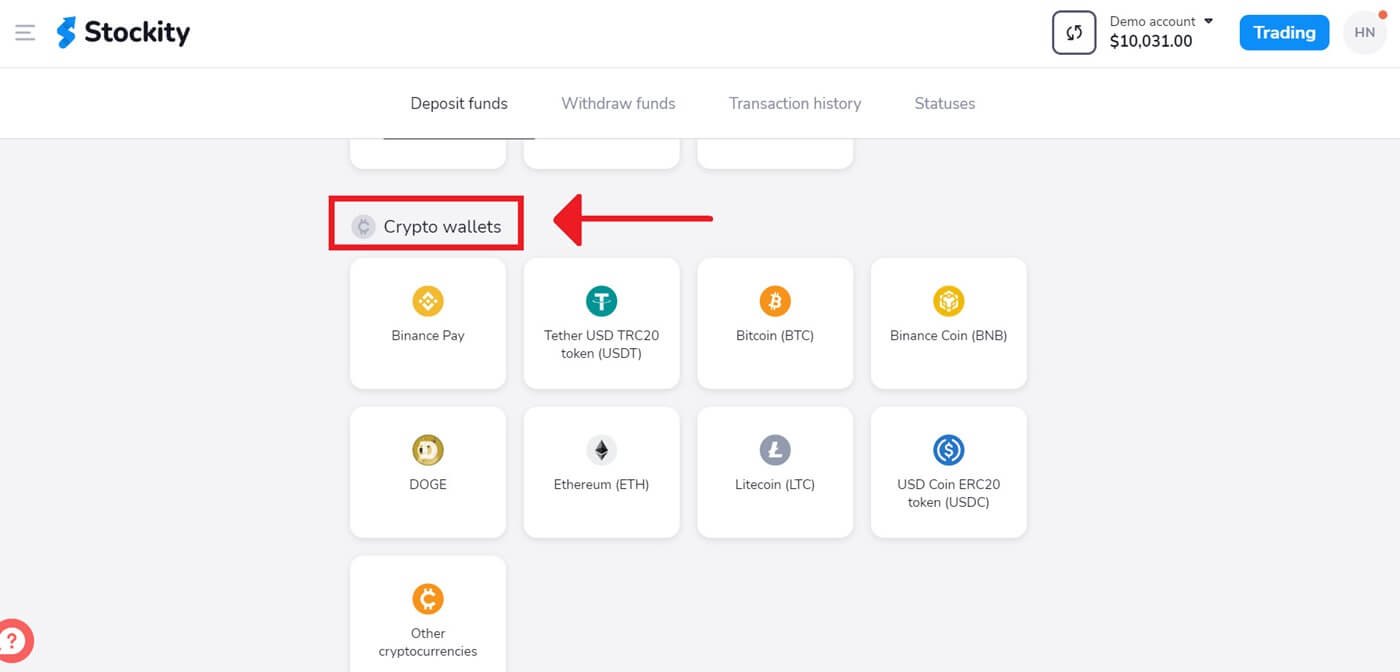
2. In the deposit area, several funding options will be displayed to you. Typically, Stockity takes a wide range of cryptocurrencies, such as Bitcoin (BTC), Ethereum (ETH), and others. Choosing "Crypto wallets" signifies your desire to fund your account using digital assets.
3. This is the area where the deposit amount is entered. Any amount between $10 and any other number can be chosen! To get a bonus, choose the "Bonuses, offers, coupons" option. Click [Deposit $10] after that.
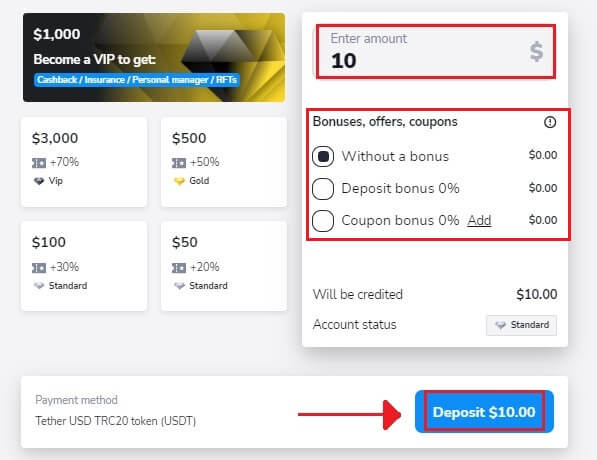
If the User deposits an amount of $100, the deposit bonus will be 30%.
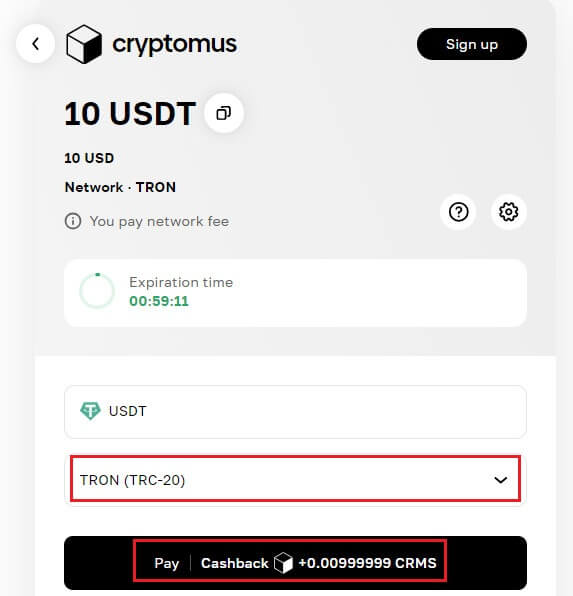
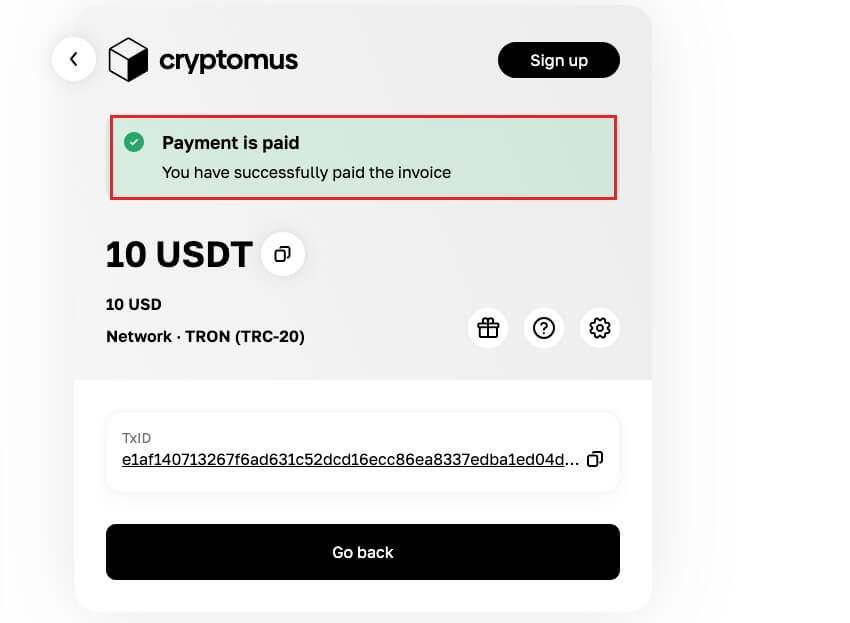
4. Select your network and click "Pay" to deposit.
5. For each cryptocurrency that it supports, Stockity provides a unique wallet address to which you can send your funds. This address is necessary for your cryptocurrency to be transmitted correctly and securely. Make a copy of the provided wallet address.
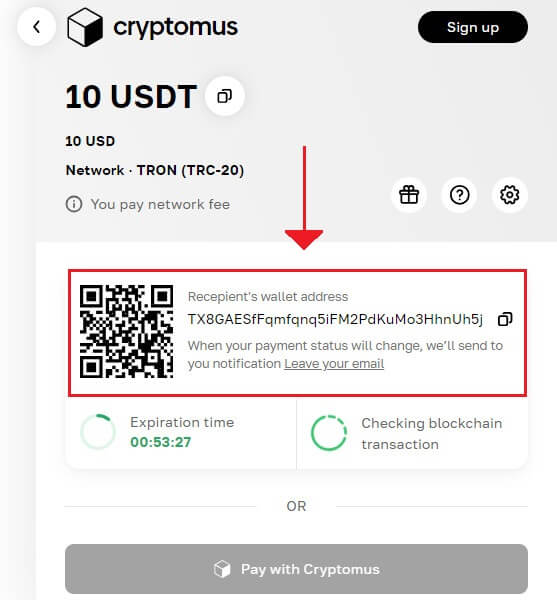
6. Open the exchange account or personal bitcoin wallet that you are using to send the money. Transfer money to the Stockity wallet address you copied in the preceding phase. Before finalizing the transfer, make sure the address is entered correctly and that all the information is correct.
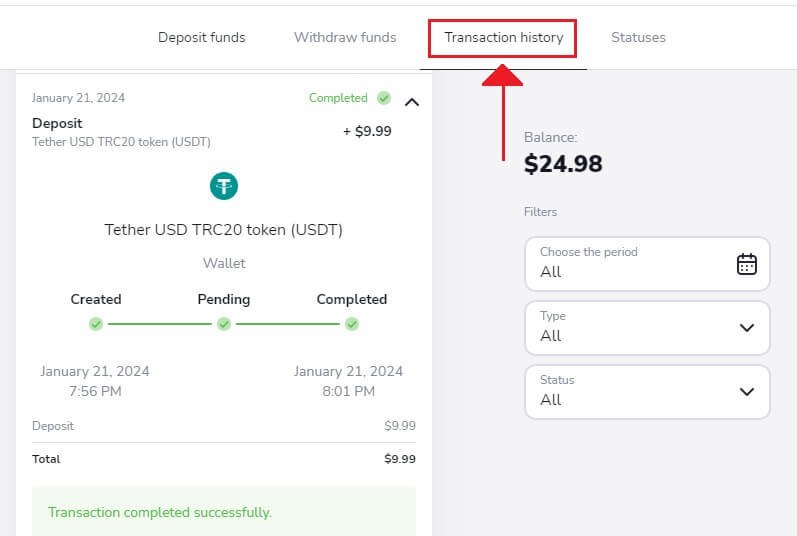
7. You can check the status of your transaction in the “Transaction history” tab on Stockity.
How to Deposit Funds on Stockity Using E-Wallets (Advcash, Perfect Money)
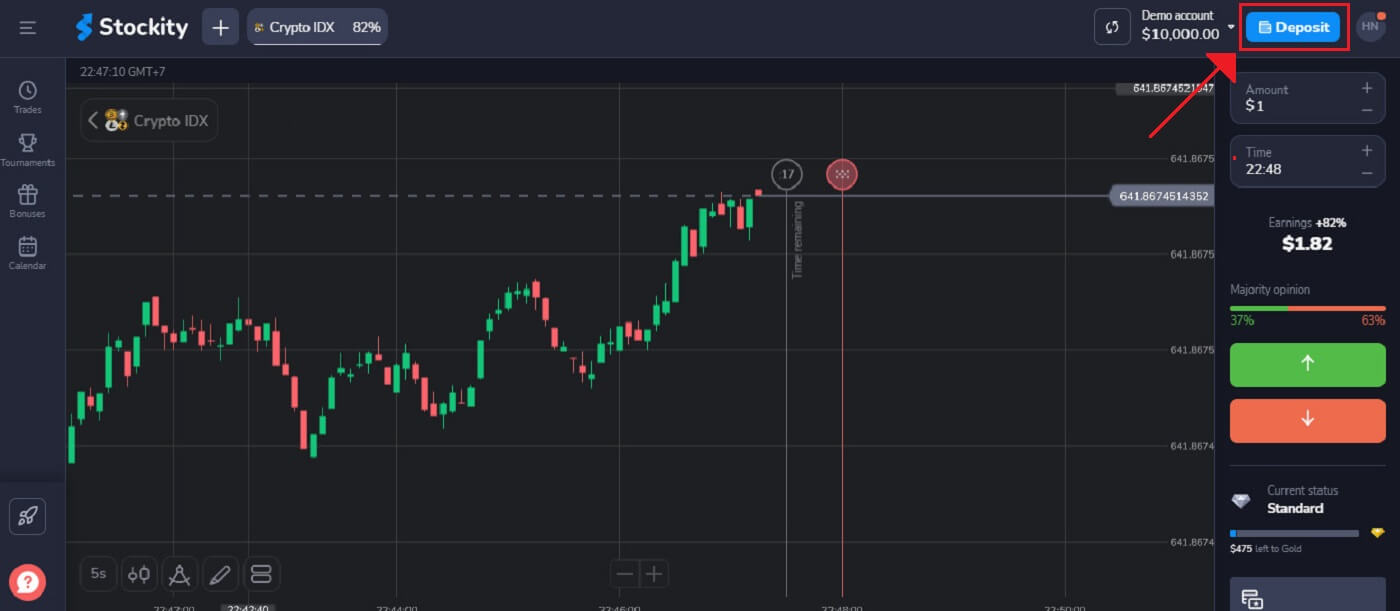
Around the world, e-payments are a popular electronic payment method for speedy and secure transactions. Using this method of payment, you can add free balance funds to your Stockity account.1. Click the "Deposit" button in the top right corner of the tab to initiate the trade execution window.
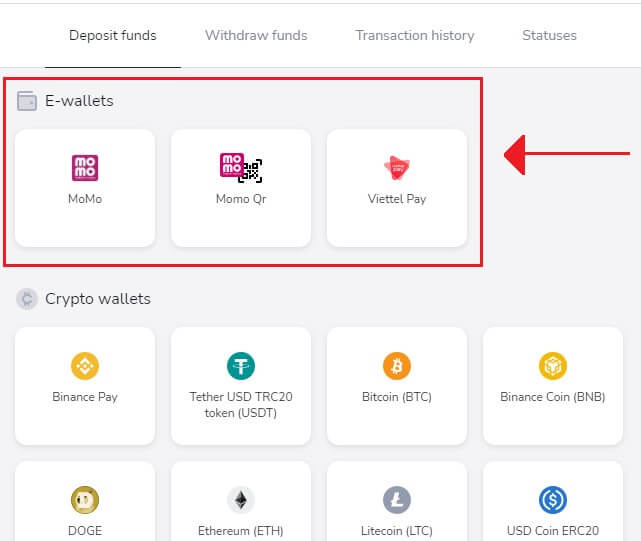
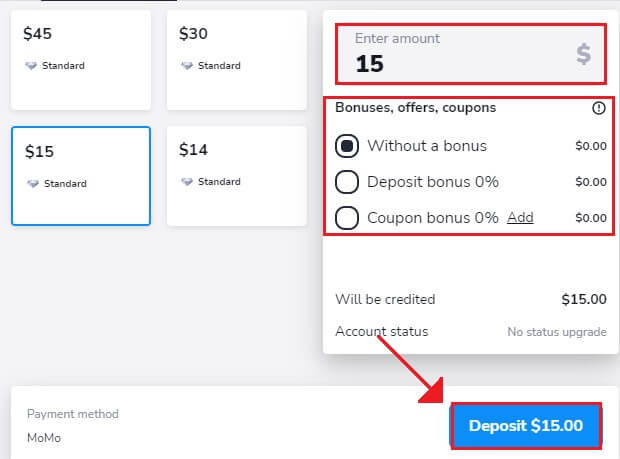
2. Choosing how you want the funds to be transferred into your account is the next step. There, we choose "MoMo" as our payment option.
3. To deposit money, you have to:
- You should input the amount you wish to deposit into your Stockity account. Ensure the amount you selected satisfies the minimum and maximum deposit requirements set by Stockity. The minimum deposit amount is $10.
- Choose your Bonuses, offers, coupons.
- Click "Deposit $15.00".
If the User deposits an amount of $100, the deposit bonus will be 30%.
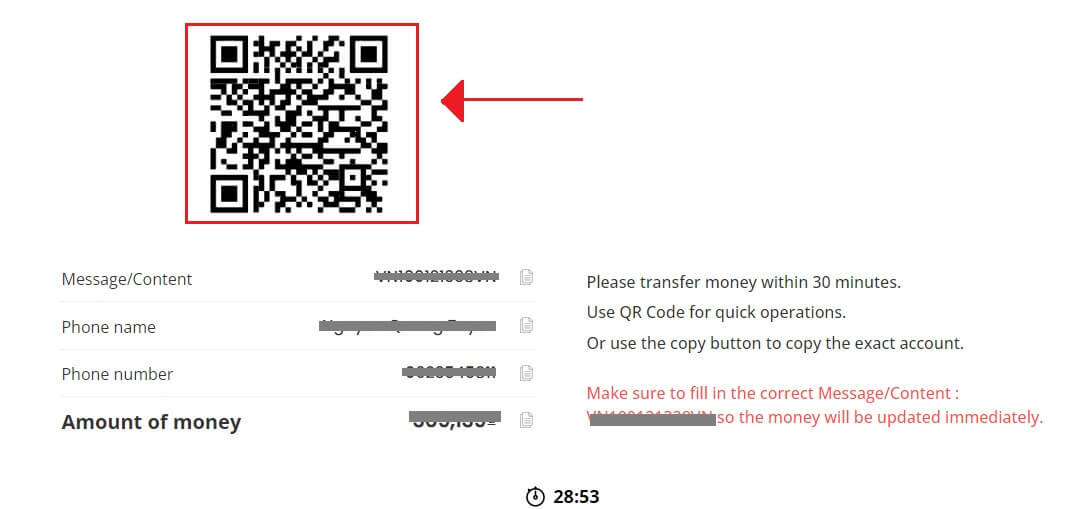
4. Kindly send the money within half an hour. For rapid procedures, use QR codes, you can also copy the exact account by using the copy button.
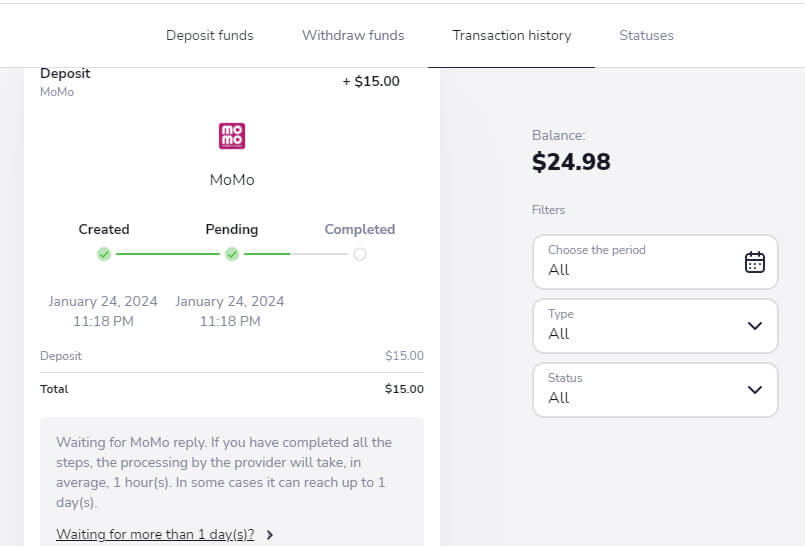
5. After the procedure is successful, you will see an on-screen confirmation in the Stockity platform. You have to wait for MoMo’s reply to complete all the steps deposit. You may also receive an email or message from Stockity informing you of the deposit transaction.
Frequently Asked Questions (FAQ)
How much time does it take for funds to be credited to my account?
When you make a deposit, it is assigned a "Pending" status, indicating that the payment provider is currently processing your transaction. The processing period varies for each provider.To access information about the average and maximum transaction processing time for your pending deposit, follow these steps:
1. Click on your profile picture located in the top right corner of the screen, and select the "Cashier" tab from the menu. Then, click on the "Transaction history" tab.
For mobile app users: Open the left side menu and choose the "Balance" section.
2. Find your deposit in the transaction history and click on it to view the processing period.
Please note that payment providers generally process deposits within a few hours. The maximum transaction processing time is rarely applicable and may be influenced by factors such as national holidays or specific regulations set by the payment provider.
When the funds will be credited to my account?
The majority of payment systems typically process transactions immediately upon receiving confirmation, usually within one business day. However, this may not be the case for all payment providers or in every situation. The specific processing timeframes are usually indicated on the provider’s website or displayed during the transaction process.If you haven’t received your funds, here’s what you can do:
- First, ensure that you are using the Real account and not the Demo account. Transactions will not be visible if you are still using the Demo account.
- If your payment remains in "Pending" status for more than one business day, or if it has been completed but the funds have not been credited to your account, please reach out to us via email at [email protected] or through the live chat.
- If necessary, you can request payment information. To provide you with the necessary details, we require the transaction code, which is a sequence of lowercase letters and digits. For example: cf312f4ffb626h46ab888aa698115424.
To share the transaction code, please follow these instructions:
Desktop:
- Go to the Transaction History tab in the Cashier section.
- Select the relevant transaction.
- Click on the "Copy Transaction" button.
- Paste the transaction code into the support chat or email it to [email protected].
Android app:
- Choose "Balance" in the left-side menu OR go to Profile (right bottom corner) → Balance (updated app).
- Click on the desired transaction.
- Press the "Copy Transaction ID" button.
- Paste the transaction code into the support chat or email it to [email protected]. You can also use the "Contact support team" button within the transaction details.
iOS app:
- Select the "Balance" section from the left-side menu on the platform.
- Take a screenshot of the relevant transaction.
- Send the screenshot via the support chat or email it to [email protected].
Can I deposit with a card that isn’t mine?
Using payment methods that don’t belong to you is prohibited by the Client Agreement. You should only deposit and withdraw to cards and wallets that are officially yours.
You can use a non-personalized card (a card without a name on it) if it’s been issued for you. With this type of card, you should still enter your real name when ordering payment.
Is there a fee for making a deposit?
We do not charge or take commissions when you deposit funds. In fact, we may offer a bonus when you make a deposit. However, it’s important to note that certain payment service providers might apply their own fees, particularly if there’s a currency discrepancy between your Stockity account and the chosen payment method.Fees and conversion losses significantly depend on factors such as your payment provider, your country, and the currency you’re using. This information is typically available on the provider’s website or will be shown during the transaction.